Installation Documentation
Flows for APEX Enterprise Edition v26.1 has a single installation process that used to upgrade a Flows for APEX Community Edition v26.1 to Flows for APEX Enterprise Edition v26.1.
Pre-Requisites
-
You need to start with a working Flows for APEX v26.1 Community Edition installation - the Enterprise Edition instals on top of the Community Edition.
-
If you have an existing Flows for APEX 25.1 (CE or EE) or earlier installation, upgrade and migrate this to Flows for APEX v26.1 Community Edition first using the instructions here.
-
If you are installing a new system, start by installing Flows for APEX Community Edition v26.1. You can do this by importing the Flows for APEX Community Edition app and installing its supporting objects using the instructions here.
-
-
You should already have Timers set up and working. (Unlike v24.1, from v25.1 onwards these are now set up for you as part of the Community Edition installation - so these should already be installed)
-
APEX Version. Installation requires Oracle APEX v24.1 or later.
-
Database: Installation requires Oracle Database 19c or later.
-
Privileges: To run Enterprise Edition, the Flows for APEX Schema requires the following privileges, grants, and roles:
Type Required System Privileges CREATE TABLE
CREATE PROCEDURE
CREATE SEQUENCE
CREATE VIEW
CREATE JOB
CREATE. TYPESystem Roles AQ_ADMINISTRATOR_ROLE
AQ_USER_ROLESystem Packages execute privilege on DBMS_AQ These are checked by the Installer before the Enterprise Edition can be installed.
-
To run the ‘AskFlo’ AI Chatbot feature, you need to set up a Workspace-level Generative AI service for Flows for APEX. This can now use any capable model (we have tested OpenAI gpt-40 or higher and Anthropic Claude 4.x) with a static ID defined in APEX as
F4A_AI_SERVICE. For detailed instructions, see below. -
If you are not using / not able to use the AI features, the 25.1 Community Edition APEX app installation should have already created a dummy AI service for you named
F4A_AI_SERVICEthat just links toexample.comand is non-functional. This is sufficient. You can edit this definition later (in Application Builder > Workspace Options), once you are ready to use AI. -
To use AI-powered Adhoc SubProcesses (🆕), you have a choice between using the APEX_GEN_AI API or the United Codes UC_AI API. If you are using APEX 24.1 or 24.2, use of UC_AI will allow you to use more current models than were allowed in APEX 24.x. With APEX 26.1, the APEX interface has picked up more support for current AI providers and models. However, UC_AI gives more freedom to adopt new models or providers between APEX releases, and is a free open-source library available from United Codes. We generally use UC_AI more during product development due to its being open and APEX version independant. We do NOT SUPPLY the UC_AI code as part of the Flows for APEX install. You should install and configure UC_AI prior to installing Flows for APEX v26.1 if you want to use it.
Then follow one of these two paths to install a new environment or migrate an existing one.
New Enterprise Edition install.
You will need:
- to be running Oracle APEX 24.1 or later.
- to be running Oracle database 19c or later.
- have a running Flows for APEX 26.1 Community Edition installation.
- to have the required privileges (see above).
You then install the Enterprise Edition on-top of the Community Edition. The installation sets up Oracle Advanced Queueing, installs some missing PL/SQL package bodies and SQL views, recompiles everything, and gives you an Enterprise Edition system. To do this:
- Download the Enterprise Edition package from the link given to you by Flowquest.
- Unzip the release into a folder on your computer.
- Change Directory to the folder containing the unzipped files.
- Using SQLcl, connect to the database as the Flows for APEX schema owner.
- Run the file
install_all_ee.sql. This should- suspend the timer job
- create or repar Oracle AQ objects required for MessageFlow and Async Tasks🆕
- Upgrade your schema by adding views and packages required for Enterprise Edition.
- Recompile all of the Flows for APEX packages
- Add your licence information to the Flows for APEX configurations
- Restart your timer job.
- Flows for APEX Enterprise Edition should now be running.
Existing Enterprise Edition v24.1 User migrating to v25.1
You will need:
- to be running Oracle APEX 24.1 or later.
- to be running Oracle database 19c or later.
- to have the required privileges on the Flows for APEX Schema. (Note: privileges required for 26.1 - same as for 25.1)
The migration path in overview is:
-
Prevent access to the system by users.
-
Disable Timers.
-
Backup your System.
-
Follow. the instructions to migrate a Community Edition v25.1 installation to a CE v26.1 one. This will temporarily make your system a v26.1 Community Edition.
-
Install Enterprise Edition v26.1 on-top of the Community Edition. The installation script acts as a instal and migration script, setting up / repairing up Oracle Advanced Queueing for MessageFlow and Async Tasks🆕, installs some missing PL/SQL package bodies and SQL views, recompiles everything, and gives you an Enterprise Edition system. To do this:
-
Download the Enterprise Edition package from the link given to you by Flowquest.
-
Unzip the release into a folder on your computer.
-
Change Directory to the folder containing the unzipped files.
-
Using SQLcl, connect to the database as the Flows for APEX schema owner.
-
Run the file
install_all_ee.sql. This should- suspend the timer job
- create/repair Oracle AQ objects for MessageFlow and Async Tasks
- Upgrade your schema by adding views and packages required for Enterprise Edition.
- Recompile all of the Flows for APEX package.
- Add your licence information to the Flows for APEX configurations
- Restart your timer job.
-
-
Flows for APEX Enterprise Edition should now be running.
Set up your APEX Workspace-level GenAI Service for Flows for APEX.
To set Up Your Workspace-level Flows for APEX API service in APEX.
-
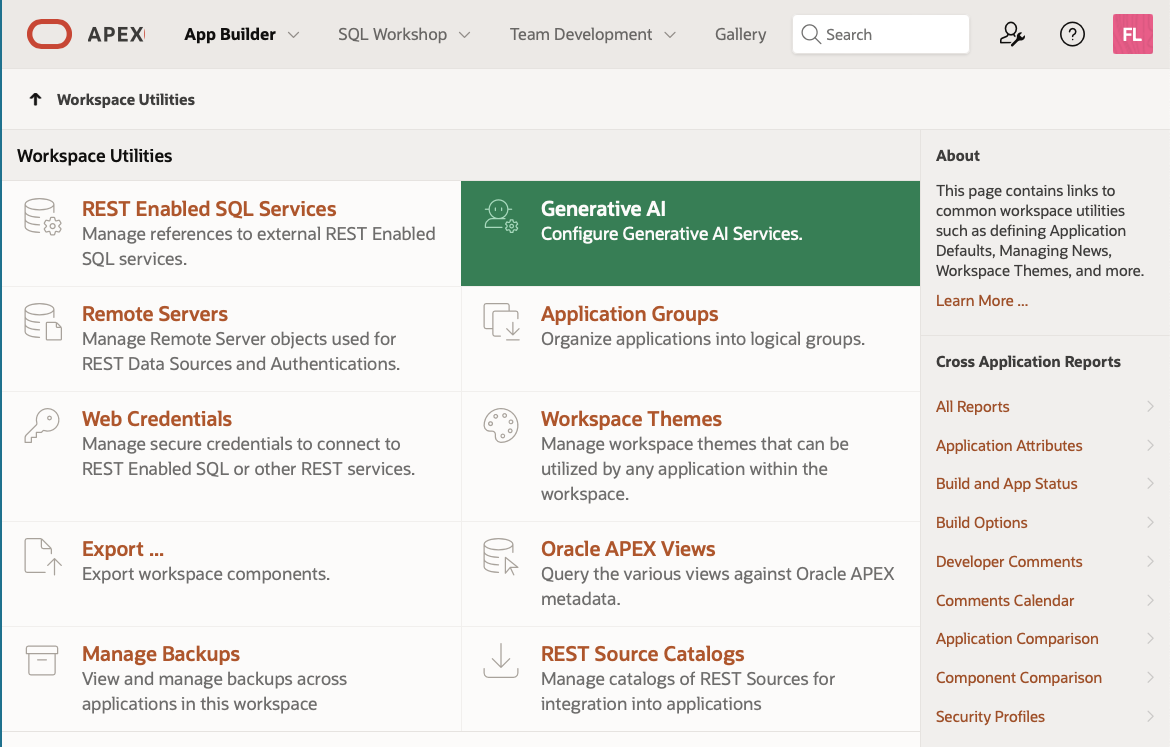
Open APEX, go into the Application Builder, and select Workspace Utilities
-
Select Generative AI
-
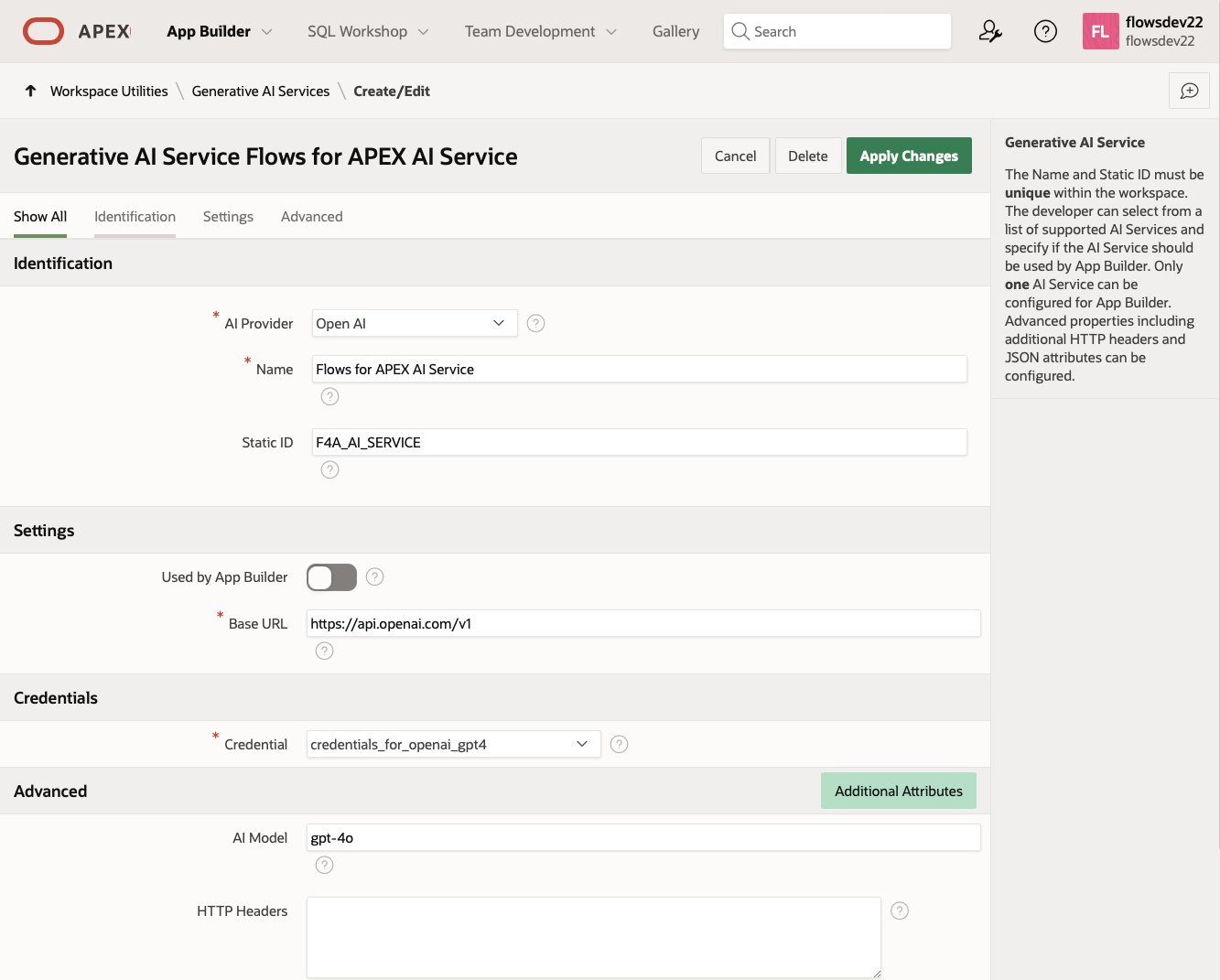
Either edit the Generative AI service named “Flows for APEX AI Service”, with a static ID of “F4A_AI_SERVICE”, or create one if it doesn’t already exist..
You will need to get an API Key from openai.com or Anthropic or equivalent if you don’t already have one stored in your workspace credentials.
 .
.To use a service with different name, you will have to open the Flows for APEX application in the APEX Application Builder, navigate to the P7 AI Chatbot Initiation and select your chosen AI service.
-
UC_AI. To use Adhoc SubProcesses with APEX 24.1 or 24.2., you should use the UC_AI package so that you can use a current LLM. With APOEX 26..1 (as at August 2026) you have access to current models through the APEX_GEN_AI interfaces. The BPMN diagrams used in the Lost Luggage demo , as shipped, use the UC_AI demo and run/ have been tested with with a current GPT or Claude model.
To use UC_AI with Adhoc Subprocesses, download and install UC_AI from GitHub, configure your vendor and model in the supplied packages.
Note: In Flows for APEX v26.1, the Flows for APEX application can use AI in three places:
- The CE AI Service Task
- The EE AskFlo ChatBot
- EE Adhoc SubProcesses The AI services for each of these is configured separately. (We plan to harmonise this in a future release).